See what ran
Flow Logs shows every run, what each step did, and why one failed.
Automation you cannot see is automation you cannot trust. Automations > Flows > Flow Logs lists every run of every flow, newest first.
The list
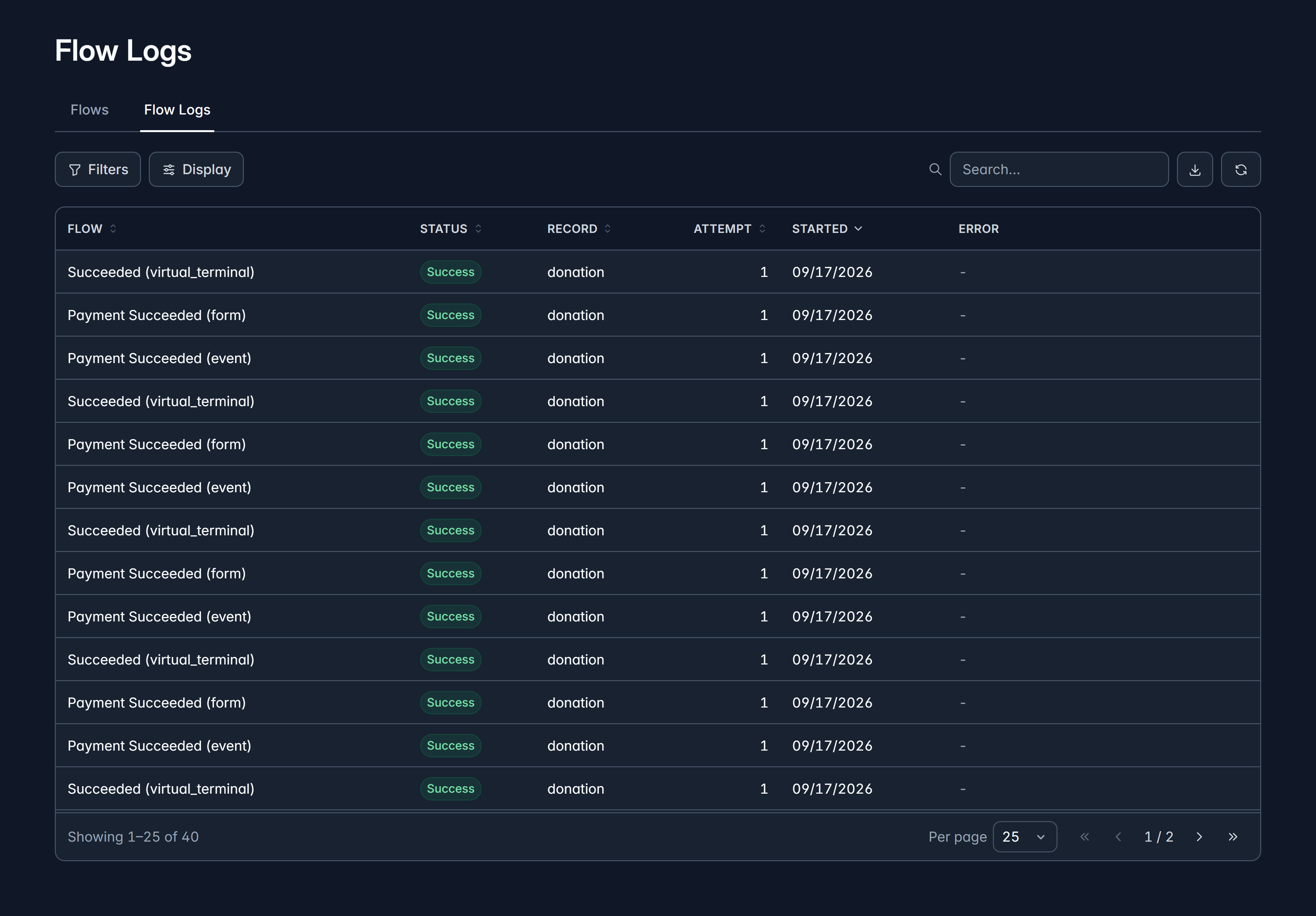
Each row is one run: the Flow, its Status, the Record it ran for, which Attempt this was, when it Started, and any Error. Turn on Completed from Display when you care how long things take.
| Status | What it means |
|---|---|
| Pending | Queued, not started yet. |
| Running | In progress. |
| Success | Finished, every step done. |
| Failure | A step errored and the flow stopped. |
| Skipped | The record filter did not match, so nothing ran. |
| Cancelled | Stopped before it finished. |
Filter, search and sort as on any list. This one is deliberately read-only: you read what happened here, and make changes in the flow itself.
One run, in detail
Select a row and the Run detail panel opens: every step in order, what kind it was, whether it succeeded, how long it took, any error, and a summary of what went in and what came out. A step from a dry run is labelled as one.
That is usually enough to see the problem: a template that is not published, a required field with nothing in it, a recipient role with nobody in it.
When a run fails
Check the flow is published, not only saved. A chip reading Changes not live means your edits are sitting in a draft while an older version does the work.
Before changing a published flow, run Debug against the record that failed. A dry run sends nothing and changes nothing, so you can try three fixes in five minutes.
Related
Build a flow
Triggers, elements, conditions and publishing.
Email templates
What a flow's Send Email step actually sends.
Still stuck?
We're here for you, and no question is too small. Tell us what you were trying to do and what happened, and we'll help you get it sorted.