Email templates
Design the emails Givable sends, personalize them, and test before they go out.
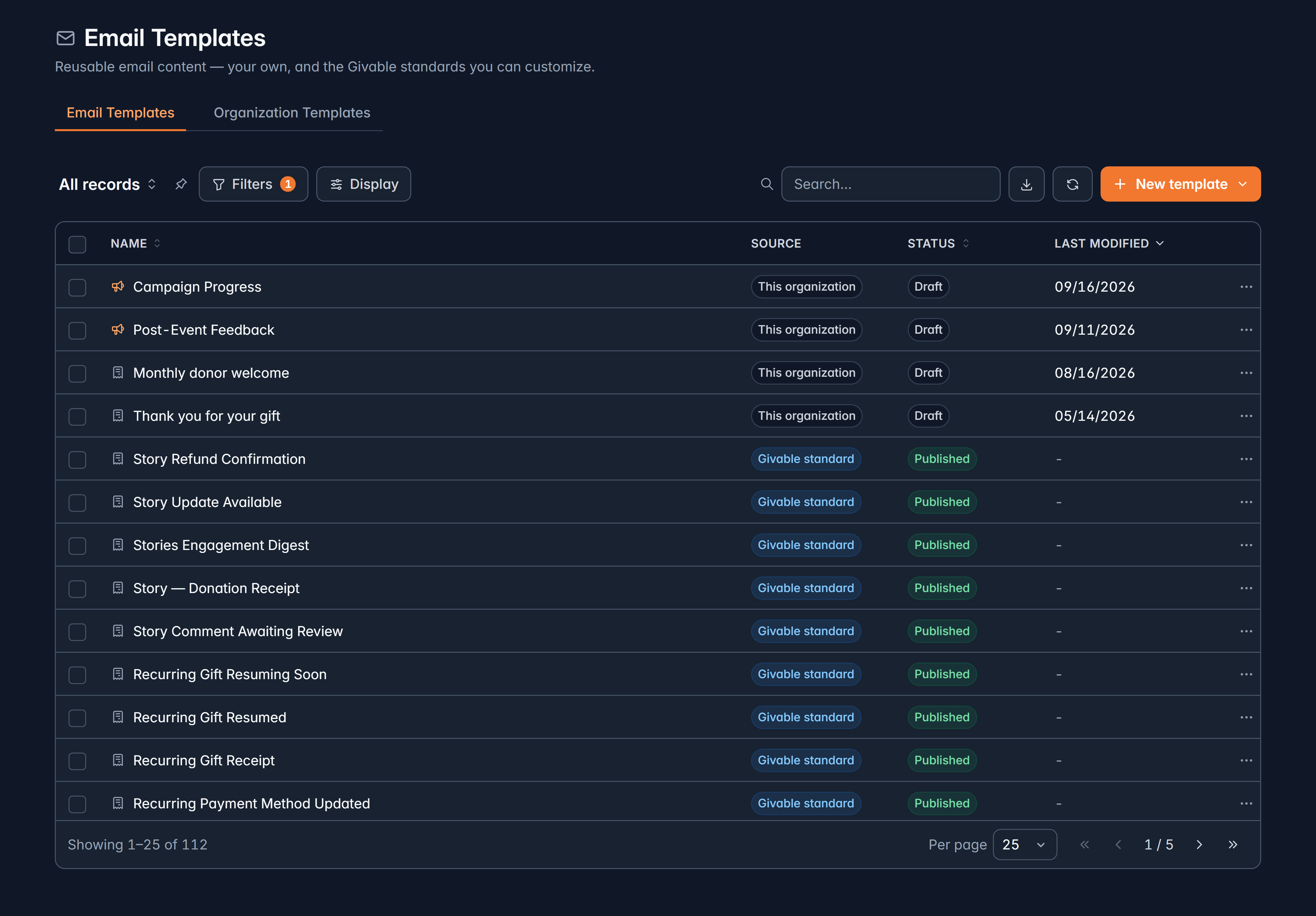
Templates > Email Templates holds the wording and design of every email your organization sends: your own, plus Givable's standards that you can customize.
Before you start: publishing and archiving templates needs administrator access or permission to edit templates. Anyone can open one and look.
Two kinds of email
When you create a template you choose one, and the choice matters:
| Kind | For | Opt-outs |
|---|---|---|
| Marketing email | Appeals, newsletters, campaigns | Honors opt-out, and always carries an unsubscribe link |
| Transactional email | Receipts, confirmations, service notices | Always sends, because people need them |
Don't dress a marketing email as transactional to reach people who opted out. Besides being against the law in most places, it's the fastest way to have your email treated as spam by the services your donors use.
Create one
New template, then the kind
Choose Marketing email or Transactional email.
Choose a design
Pick from the gallery, or Blank template to start from nothing. The magnifier shows a design full size before you commit.
Name it and set the subject
The Template name is internal. The Subject line is what lands in an inbox, and it's worth more thought than the rest of the email.
A transactional template goes to its settings first, since what triggers it is what makes it sendable. A marketing one goes straight to the design editor.
Design the email
The editor has blocks on the left, your email in the middle, and the selected block's settings on the right.
Blocks available: Text, Heading, Image, Button, Progress bar, Divider, Spacer, Table, Social, Icon, List, Feedback rating, HTML and RSS feed. The Layout tab supplies rows and columns.
Switch to Mobile view before you finish. Most donors read on a phone, and edits made in mobile view apply only on mobile, so you can fix a cramped layout without disturbing the desktop one.
Personalize with merge fields
Text, image and button fields have an Insert merge field picker: the donor's first name, the gift amount, your organization's details, and anything your organization has defined itself.
Preview As... renders the email with a real supporter's details, so you see what they'll see instead of a page of placeholders.
Your own merge fields
Templates > Custom merge tags defines placeholders for things you repeat everywhere: your office phone number, your mission statement, a social link. Set the value once and use the tag in any template. Change the value later and every template follows.
They can hold text, a date, a number, a URL or an image.
Test before you send
The template's settings page has Send a test email, which sends the latest saved version to any address you choose.
Send the test to yourself, then open it on your phone. Check the subject line, that merge fields filled in, that the main button works, and that it reads well at arm's length.
Publish
Save stores a version; Publish makes that version the one that sends. Unpublishing falls back to Givable's standard wording rather than sending nothing, and Givable warns you first if anything still points at the template.
Every save creates a version, and you can open an older one from the template's name at the top.
Customizing a Givable standard
Standard templates can be opened and read by anyone. The first time you save one, Givable makes your own copy and your organization uses that from then on. The original is untouched, so you can always compare.
Settings worth knowing
On a template's settings page:
- Subject line, which accepts merge fields too.
- From name, From email and Reply-to. Available sender addresses come from your verified email domains.
- Cc and Bcc defaults.
- Post to donor portal, which also shows the message in the donor's portal. Available for transactional templates.
A default Bcc applies to every single send of that template and is invisible to the recipient. It's occasionally useful for an archive address, and a common way to accidentally copy someone into thousands of donor emails. Changes to it are recorded.
A template's triggering event is locked after creation. If you need a template to send at a different moment, create a new one. It stops a receipt quietly becoming a welcome email while nobody's looking.
Still stuck?
We're here for you, and no question is too small. Tell us what you were trying to do and what happened, and we'll help you get it sorted.