Create an event
Set up a gala, a run or a webinar, and get its registration page live.
Events in Givable handle ticketing, seating, the door and the money, all attached to one record.
Before you start: you need permission to create forms, a fund to put the money in, and a campaign to attribute it to. You can't publish an event without a campaign.
Create it
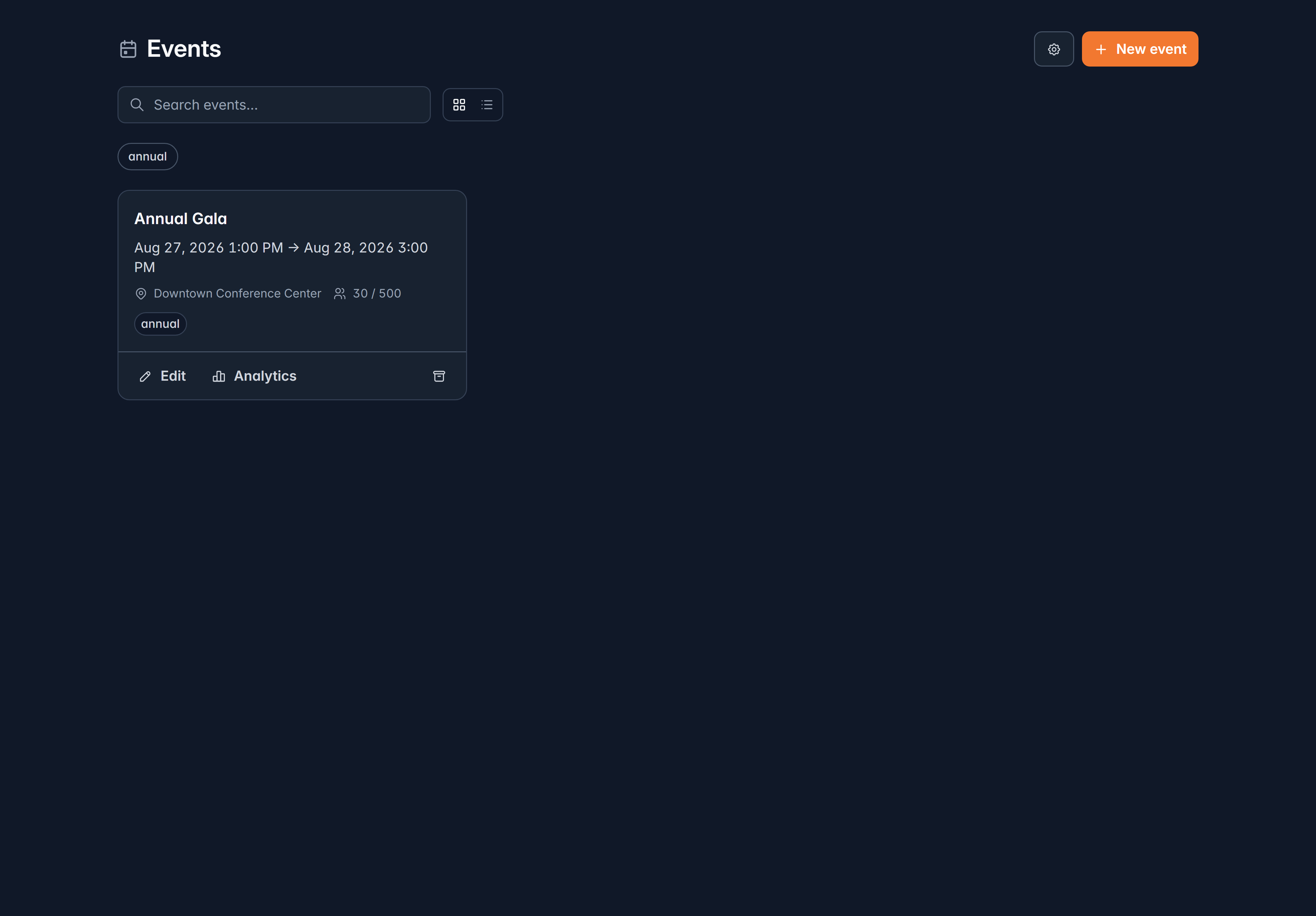
Fundraising > Events, then New event
Fill in the Event name, when it starts and ends, and the timezone. The timezone matters: it's what attendees see.
Say where it is
Turn on Virtual event for an online event and give the link, which is only shared with registered attendees after they pay. Otherwise give the location.
Set a capacity, if you have one
Leave it blank for unlimited.
Add tags
Tags group and filter your events, for example gala, 2026, annual.
The event opens on its Details tab, ready to configure. The full venue address is added there, not in the create window.
Find your way around an event
| Where | What's there |
|---|---|
| Details | Name, dates, campaign, capacity, location, tags, and whether it's published |
| Registrations | Who has booked, what they owe, who's named |
| Seating | Your tables |
| Check-in | The door |
| Marketing | Messages scheduled before and after |
| Setup | Registration types, add-ons, questions, payments, coupons, badges, settings, notifications |
| More | Analytics and activity |
On a narrow window, tabs fold into the More menu rather than wrapping.
Link a campaign
On Details, set the Campaign. Ticket sales are attributed to it, and the event can't be published until it's set.
Publish
The Status card on the Details tab publishes the event. Until then it's a draft and nobody can register.
Beside it, the Event page panel shows a preview, the public link and a way to edit the page's design.
Publish early with a first ticket type, then keep refining. Everything except the event kind can be changed afterwards, and a live page collects registrations while you work on the rest.
Before the day
A checklist worth working through:
- Ticket types and add-ons set up. See Sell tickets.
- Questions you need answered, like meal choices or access needs.
- Payments: which methods, which currency, and whether you're adding a convenience fee.
- Badges designed, if you're printing them at the door. See Run the door.
- Tables created, if you're seating people. See Seating and floor plans.
- A practice run of check-in on the actual laptop and printer you'll use.
Cancelling an event
The Details tab has Archive event, which stops new registrations and files the event away. Existing registrations and tickets are kept, and you can restore it later.
Related
Sell tickets
Registration types, tables, sponsorships and add-ons.
Run the door
Check-in and badge printing.
Still stuck?
We're here for you, and no question is too small. Tell us what you were trying to do and what happened, and we'll help you get it sorted.