Seating and floor plans
Create tables, arrange the room, and seat your guests.
Seating has two views of the same tables: a list on the Seating tab, and a floor plan for arranging the room.
Create your tables
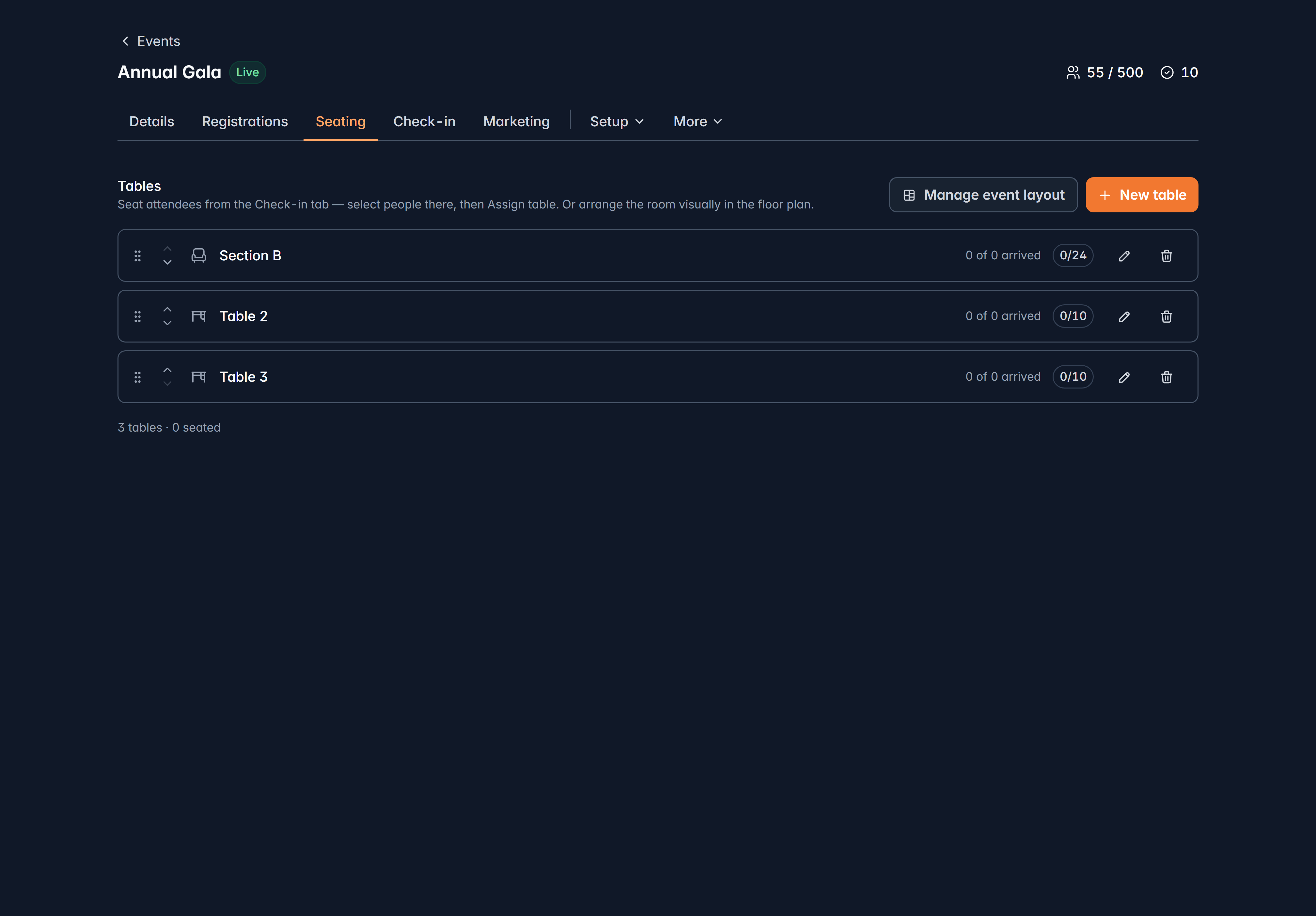
On Seating, select New table and give it a Name ("Table 12"), a Capacity and an optional Note ("Sponsor table, near the stage").
Capacity is advisory. Givable shows you when a table is over capacity but never stops you, because at a real gala you do sometimes squeeze in a tenth chair.
Each row shows how many people are seated, how many have arrived, and flags any table that isn't on the floor plan yet.
Seat people
Two ways:
Select people on the Check-in tab and choose Assign table. Quickest for "these eight go on table 4", and for the reshuffles that happen on the night.
Open Manage event layout to drag attendees onto specific seats. Use this when the seat, not only the table, matters.
The floor plan
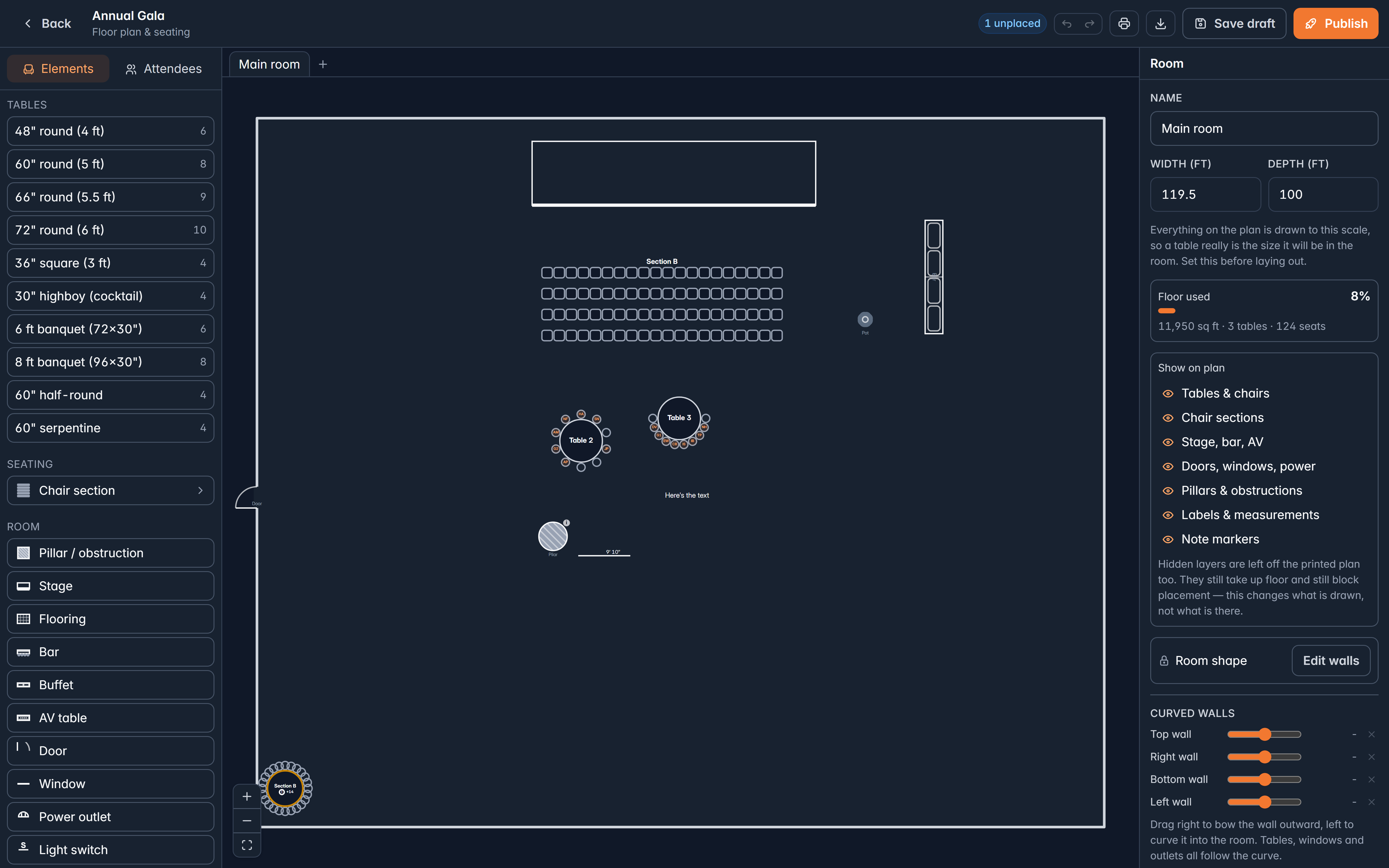
The plan is a full-screen builder. Drag tables, chair sections, doors and a stage onto the canvas to match your room, and switch the side panel to attendees to place people.
You can build more than one room, and colleagues can work on it at the same time: you'll see who else is editing.
Save draft and Publish are different, and this is the one thing to get right.
Save draft stores your arrangement. Publish applies the seating to the attendee records.
Until you publish, your seating is invisible to everything else: badges, the check-in list, exports and attendee emails all read the ticket, not the draft. A beautifully arranged room that was never published means a door list with no table numbers.
Printing for the night
The floor plan can print three things: the plan itself, a seating chart, and tent cards for the tables. You can also export the attendee list.
Print the seating chart and put it on the welcome desk. When someone asks where they're sitting, paper beats a laptop every time.
Changing seats on the night
Use Assign table from check-in: it's faster than the floor plan and takes effect immediately. Leave the plan for the layout itself.
To unseat someone, use Assign table and choose No table.
Related
Still stuck?
We're here for you, and no question is too small. Tell us what you were trying to do and what happened, and we'll help you get it sorted.