Build a flow
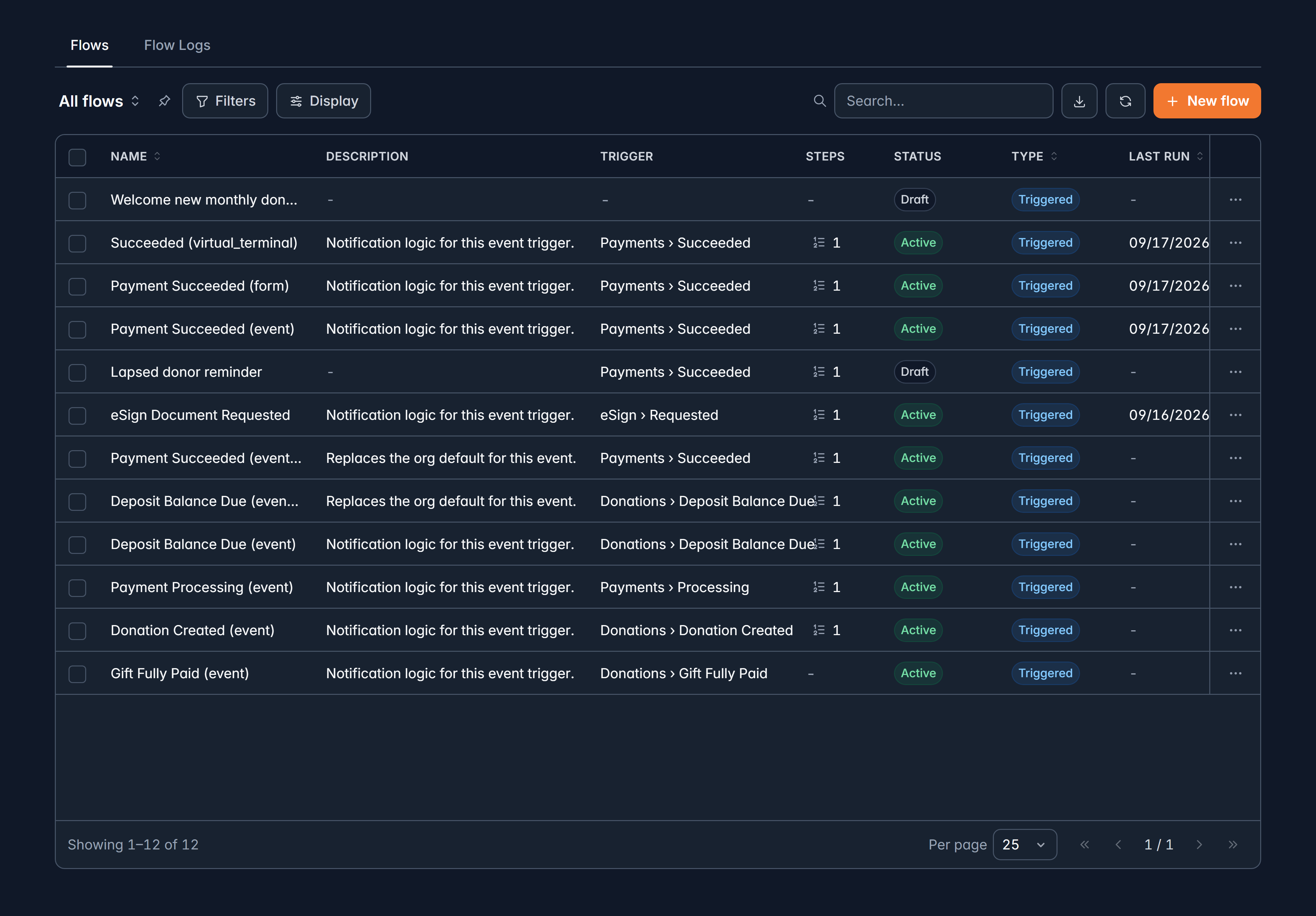
Have Givable do something on its own when a gift arrives, a form is submitted, or a date comes round.
A flow is the thing you would otherwise do by hand every single time. A first-time donor gives: send the welcome email, tag the record, make a task for a call. Automations > Flows is where you draw that once, and Givable runs it from then on.
Before you start: you need automation access. Without it the page says so, and names the permission to ask an administrator for.
The two kinds of flow
When an event happens
Something occurs in Givable, like a gift succeeding or a registration landing, and the flow runs for that record.
On a schedule
Daily, weekly or monthly, running once per matching record: supporters, donations, recurring gifts, accounts, campaigns or funds.
A scheduled flow is how you chase lapsed donors or pledge balances without anyone having to remember.
Build one
Automations > Flows, then New flow
The builder opens full screen on an empty canvas. Nothing is saved until you save it.
Set the start
Select the start card. Choose When an event happens and pick the trigger event, or On a schedule and choose the object, frequency, time and timezone.
Narrow it with a record filter
Optional, and usually a good idea. No filter means every matching event runs the flow. A filter means only gifts over $500, or only supporters in one campaign.
Add elements
Select a + on the line and the Add element drawer opens. Search it when you already know what you want.
Set each element up
Select any step and its settings appear on the right.
Save
The first save asks for a name, an optional description and an API name. Saving creates a draft version and changes nothing for anyone yet.
Publish
Publish makes that version live and switches the flow on in one move. Unpublish turns it off again.
Build the flow with a narrow filter first, publish it, watch a few real runs in the logs, then widen the filter. It is a much calmer way to discover what you actually meant than turning it on for everybody at once.
What a flow can do
Sends one of your templates to a role: the donor, your administrators, a fundraising page owner, a team captain, the record's creator, a named teammate. Set From, Cc, Bcc and Reply-to, or leave them to inherit from the template, and attach a receipt when one belongs.
The panel tells you whether the template is transactional (always sends) or marketing (honors do-not-contact and email opt-out), which is the difference between a receipt and a newsletter.
When a step goes wrong
Every action carries an On failure setting: Stop the flow, or Continue anyway.
You can also give a step a fault path: a separate branch, drawn in red, that runs instead when that step errors. Use it to tell somebody that the thing which should have happened did not.
Versions, and changing a live flow
The flow name in the header opens Version history. Every save is a version, the live one is tagged Published, and you can open an older one to read it without touching what is running. Saving that older version is how you roll back.
The chip beside the name tells you where you stand: Draft, Published, or Changes not live when you have saved edits sitting over a published flow. That last one matters, because saving is not publishing.
Publish stops and tells you when something is incomplete. A panel lists exactly what to resolve, step by step and field by field, rather than letting a half-finished flow loose on your donors.
Test it before anyone gets an email
Debug does a dry run: no emails sent, no records changed. The canvas replays the path taken, and the Debug run panel lists every step with its status, the record filter result, and any error. Save the flow first, since there is nothing to test until you have.
Related
See what ran
Flow Logs, and what to do about a failure.
Notifications
The messages Givable already sends, and how to word them.
Still stuck?
We're here for you, and no question is too small. Tell us what you were trying to do and what happened, and we'll help you get it sorted.