Leads
Track interested people before they give, and see them become supporters.
A lead is someone who has shown interest but hasn't given yet: a newsletter signup, an event enquiry, a half-finished form. When they give, they become a supporter.
Before you start: you need permission to view leads. Adding one also needs permission to edit them.
Add a lead
Unlike supporters and accounts, you can add a lead yourself.
Open Supporters > Leads
Select New lead.
Give at least one way to reach them
An Email or a Mobile phone. Either is enough, and you can give both. A lead with neither can't be saved, since there would be no way to contact them.
Add a name and source
First name, Last name, and where they came from: Manual, Import, Signup or API.
Create lead
They appear in the list straight away.
What the list tells you
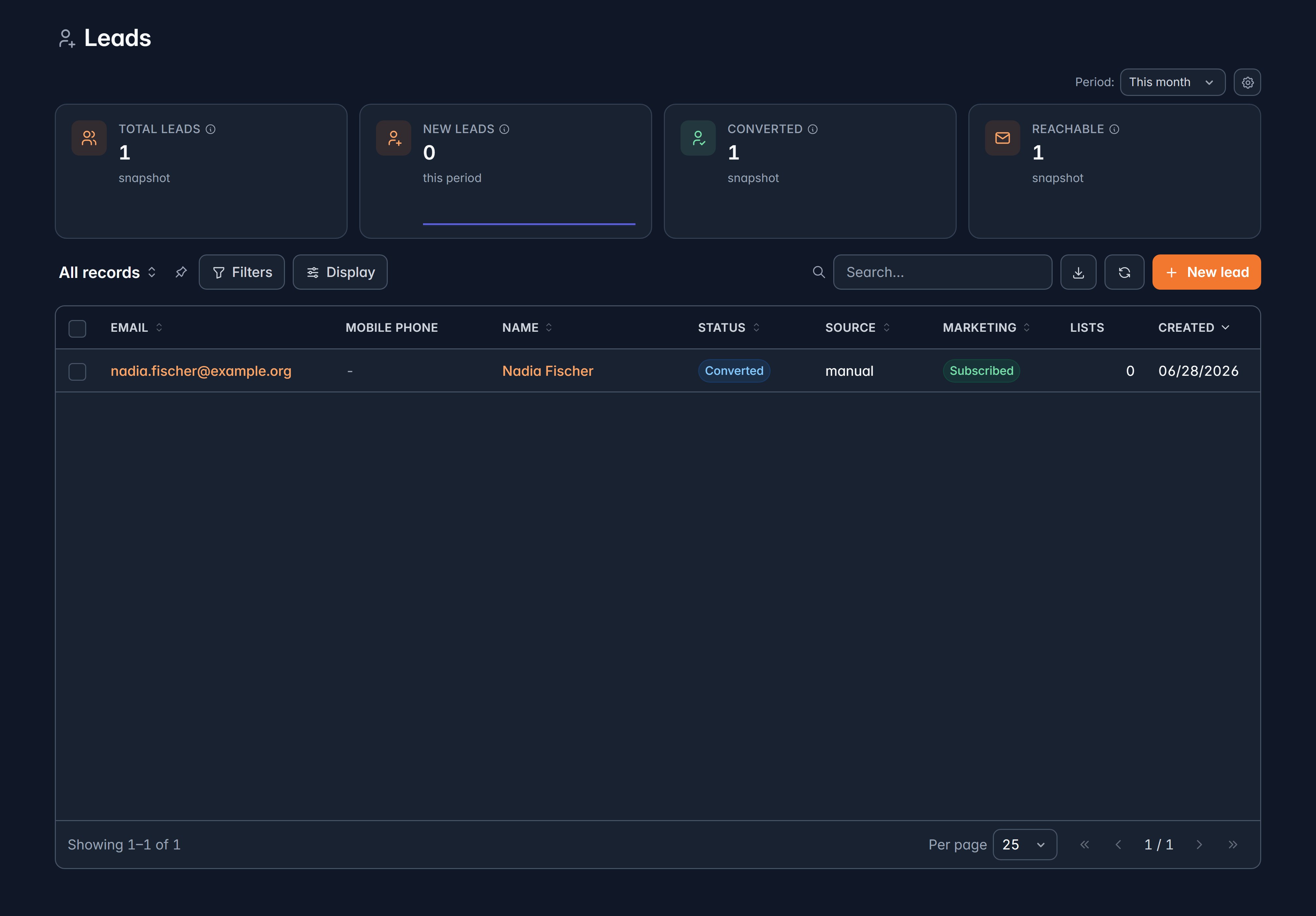
Columns are Email, Mobile phone, Name, Status, Source, Marketing, Lists and Created.
Status is one of:
| Status | Meaning |
|---|---|
| Active | A live lead you can contact |
| Unsubscribed | They've opted out of marketing |
| Bounced | Email to them failed |
| Converted | They gave, and are now a supporter |
Marketing shows Subscribed or Opted out, so you can see at a glance who you may email.
Work with several at once
Tick any number of leads to Send eSign, Add to list or Tag them.
Lists and consent
On a lead's record you'll find:
- Lists: which marketing lists they're on, and a way to remove them. Removing asks you to confirm, because it unsubscribes them from that list.
- Consent history: when they subscribed, unsubscribed or used a one-click unsubscribe, including text messages. This is your evidence of consent, so it's worth knowing where it lives before anyone asks.
Profile photos
A lead can have a profile photo, shown at the top of their record and in your inbox, the same way a supporter's is. Your team can remove one by selecting it and confirming with Remove photo, but not add one. When a lead becomes a supporter, their photo moves to the new record unless the supporter already has one. See Profile photos on the supporters page.
Leads in your supporter portal
A lead who signs in to your supporter portal sees the same portal a supporter does: the home page, their profile and photo, your Impact Stories, and their giving history and payment methods, which stay empty until they give. They can react to and comment on updates, and those are kept on their lead record.
A lead gets Impact Story update emails only after asking for them: by following a story, or by turning on Impact Stories I give to in Communication preferences. Each email has a link to stop them, the same as a supporter's. When the lead becomes a supporter, the stories they follow come with them.
When a lead becomes a supporter
A lead always becomes a supporter when they make a gift or save a payment method in your portal. You can also choose other moments under Settings > Matching & conversion > Conversion:
- Signing in to the supporter portal
- Reacting to an Impact Story update
- Commenting on an Impact Story update
For these, the lead is asked first. If they say no, nothing is saved and they stay a lead.
When they become a supporter, the lead is marked Converted and linked to their new supporter record (or to an existing supporter with the same email). Their profile details fill any empty fields on the supporter, and their reactions, comments and story access move to the supporter record. If they asked not to be called, mailed or emailed, that carries over too.
A converted lead is locked. You can't edit it or add it to lists any more, because the supporter record is now the live one. Make your changes there instead.
Erasing a lead's information
When a lead asks to be erased under a privacy law, go to Settings > Deletion requests, choose Erase a record and pick Lead. Search for them, give a reason (without their name or contact details), and type their ID to confirm. Their name, email, sign-in and activity are wiped; their consent history is kept as evidence. The erasure is recorded in Deletion requests as a completed request, and so is a lead who erases themselves from the supporter portal.
Erasing is permanent and requires administrator access. Erasing a lead does not erase the supporter they became: erase the supporter separately if they asked.
Related
Still stuck?
We're here for you, and no question is too small. Tell us what you were trying to do and what happened, and we'll help you get it sorted.