Supporters
Find, update, merge and organize the people who give to your organization.
A supporter is one person: their details, their giving history, and how they want to hear from you. This page covers finding them, keeping their records tidy, and the privacy tools.
Before you start: you need permission to view supporters. If Supporters is missing from your sidebar, ask an administrator.
Supporters are created for you
You won't find a "create supporter" form, and that's deliberate. A supporter record appears automatically the first time someone gives through one of your forms, complete with the details they entered.
To bring people in yourself:
Enter their gifts
Batch Gift Entry takes a spreadsheet of gifts, and creates the supporters along with them.
Import a spreadsheet
Bring an existing donor list in from a CSV.
Find someone
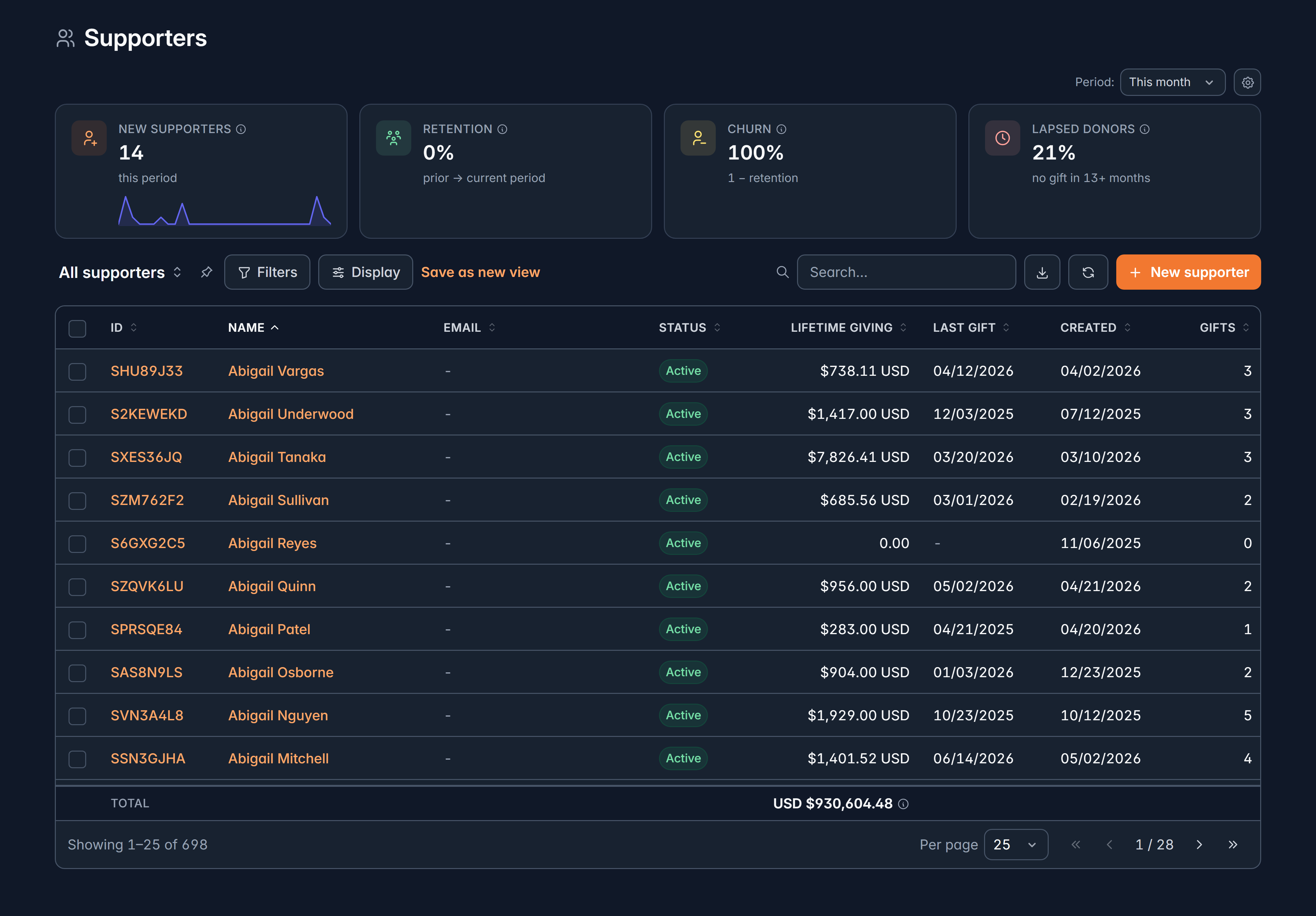
Three ways, fastest first:
Search
Press Ctrl + K (or Cmd + K) and type a name or email.
Filter the list
On Contacts > Supporters, select Filters to narrow by any field, then Apply.
Save the search you keep repeating
Select Save as new view, name it, and choose who can see it. Pin a view to make it the one that opens by default.
The list shows each supporter's ID, Name, Email, Status, Lifetime giving, Last gift, Created and Gifts. Select Display to choose which columns you see and drag them into the order you want.
What's on a supporter's record
Open anyone to see three tabs:
Their contact information, personal details like birthdate and employer, communication preferences (email and text opt-outs, do not call, do not mail), addresses, and identifiers. Any custom fields your organization has added appear here too.
Addresses live on the household rather than the person. If someone isn't linked to a household yet, Givable tells you so on this tab.
At the top you'll see lifetime giving, number of gifts, average gift, and how many recurring schedules are active.
This page is arranged by your organization, so yours may differ. An administrator can move fields, add sections and tabs, place related lists, and put the figures your team actually uses at the top. See Page layouts.
Make a change
Select Edit supporter, or select a field to edit it in place. A bar appears at the bottom showing how many fields you've changed, and nothing is saved until you save it.
The layout of this page is set by your organization. An administrator can move fields, add sections and place custom fields where your team expects them, so your page may differ from the one described here.
Tidy up duplicates
When the same person exists twice, usually because they gave with two different email addresses:
Select both records
Tick exactly two supporters in the list. Merge turns on only when two are selected.
Choose which one to keep
You'll see both side by side. Pick the record to keep, and for each field choose which value wins.
Merge
The other record is archived, and its donations, relationships and saved payment methods move to the record you kept.
Merging can't be undone. If you're unsure which is the better record, open both first.
Tags and lists
Tick any number of supporters and use the bar that appears:
- Tag adds or removes tags in bulk, which is the simplest way to group people for later.
- Add to list puts them on a marketing list for a mailing.
- Send eSign sends a document out for signature.
Delete, and getting it back
Select supporters and choose Delete. Before it happens, Givable tells you what else goes with them, for example "This will also delete its 3 gifts, 5 payments."
Deleted records go to the Recycle Bin, reachable from the button at the top of the list, and stay there for one year. You can restore them, together with everything deleted alongside them, or remove them permanently.
Erasing someone's personal information
When a supporter asks to be erased under a privacy law, use Erase data in the menu on their record. This is different from deleting:
| Delete | Erase data | |
|---|---|---|
| What happens | Record moves to the Recycle Bin | Name, email, phone and address are permanently wiped, including on their past gifts |
| Financial history | Kept, and restorable | Amounts, dates and IDs are kept |
| Reversible | Yes, for a year | No |
Givable spells out exactly what will be wiped and asks you to confirm. Use it when someone exercises their right to erasure, not for routine tidying.
Erasing is permanent. It also keeps the financial record your accountant and your tax authority need, which is why amounts and dates survive.
Related
Accounts
Households and organizations that supporters belong to.
Leads
People who are interested but haven't given yet.
Still stuck?
We're here for you, and no question is too small. Tell us what you were trying to do and what happened, and we'll help you get it sorted.