Add Givable to your WordPress site
Install the Givable plugin, connect your site, and place donate buttons, forms, events and banners without pasting code.
With the Givable plugin, anything you build under Embed Blocks shows on your WordPress site, inside your own theme. Install it once, click Connect, and you pick your blocks by name in the editor you already use.
Before you start: you need to be an administrator on your WordPress site, and able to sign in to Givable. Build the blocks you want to place under Embed Blocks in Givable first.
Install and connect
Install the plugin
In your WordPress dashboard, go to Plugins > Add New Plugin, search for Givable, then select Install Now and Activate.
Connect to Givable
Go to Givable > Connection and select Connect to Givable. Sign in to Givable, choose your organization and approve. Nothing needs to be copied or pasted.
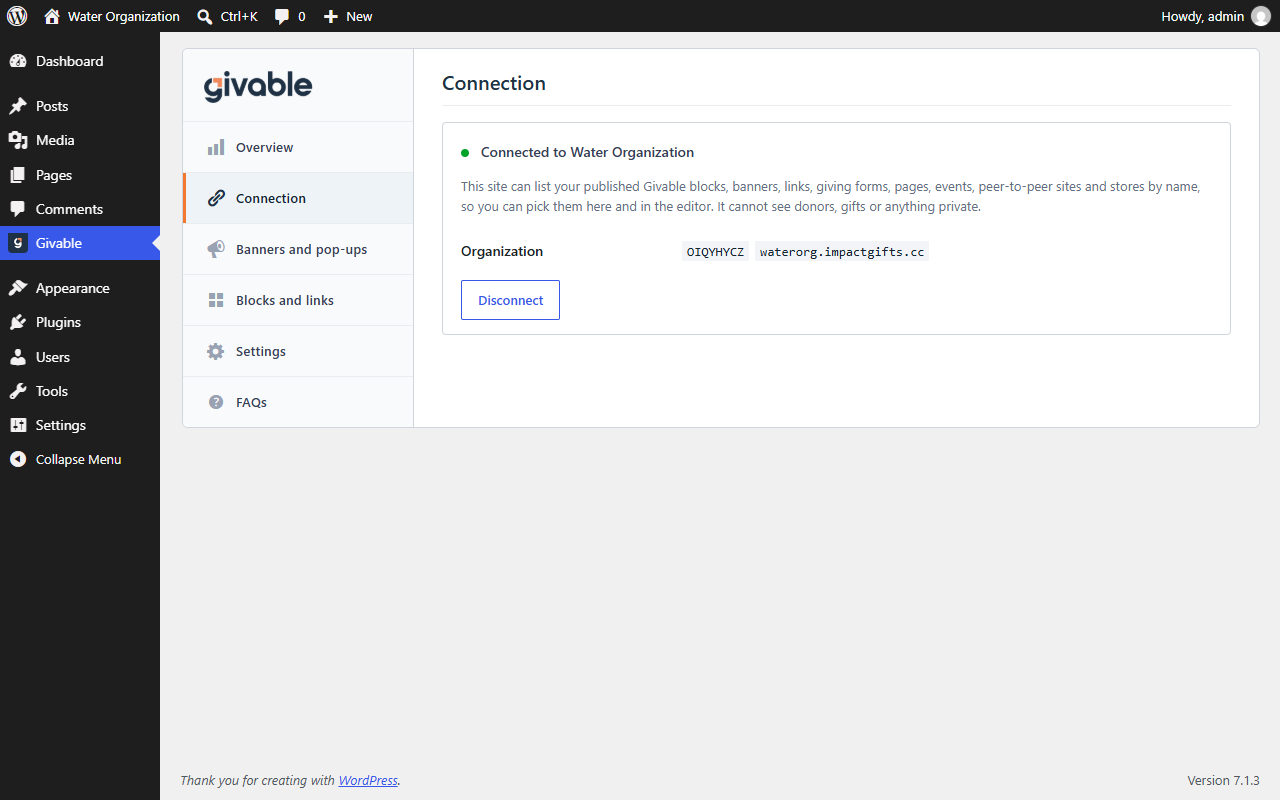
You're connected
The Connection tab now says Connected to your organization. The connection is read only: your site can list the names of your published blocks, banners, links, forms, events, peer-to-peer sites and stores, so you can pick them. It can't see donors, gifts or anything private, and it can't change anything in Givable.
Place a block on a page
Add Givable Blocks
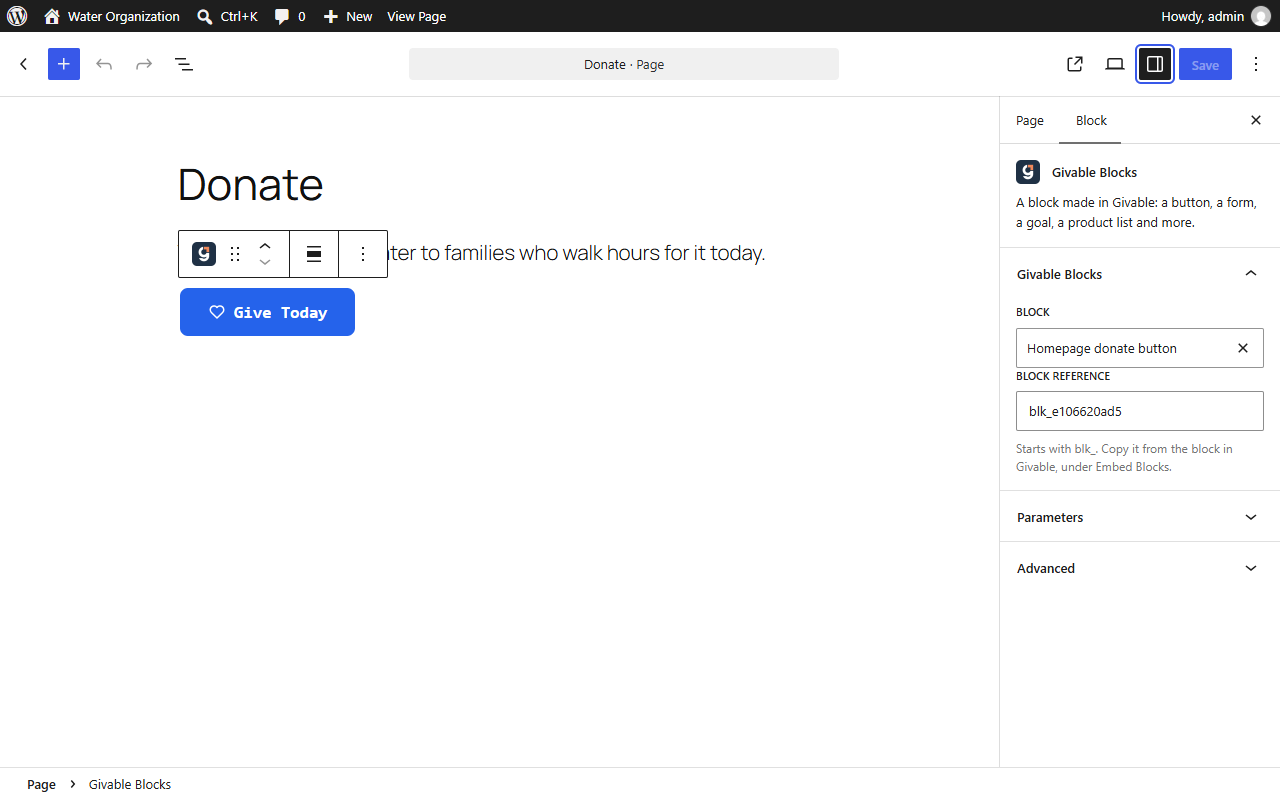
Edit any page, add a block and search for Givable Blocks. In Elementor, Divi, Beaver Builder or WPBakery, add the Givable Blocks element instead.
Pick your block
Under Block, choose the block by name. It draws in the editor the way visitors will see it.
Publish
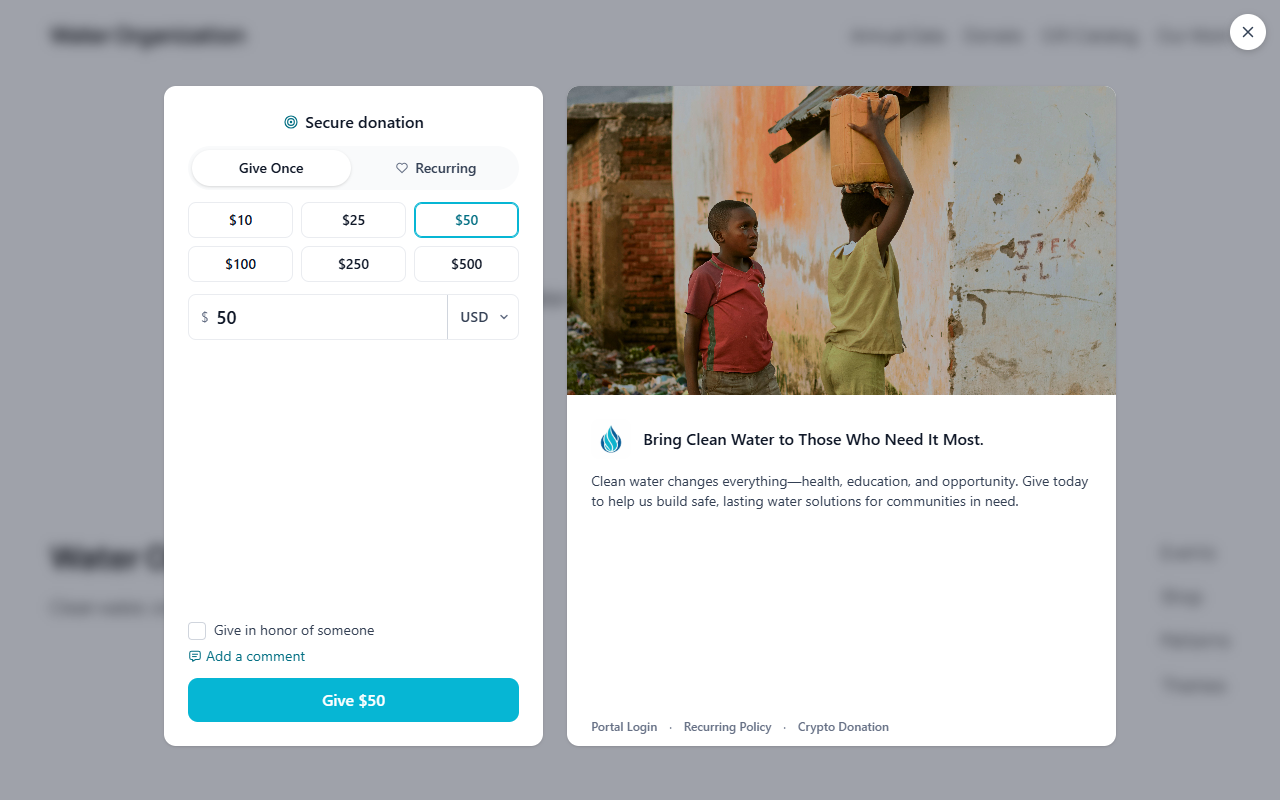
Update the page. A donate button opens its giving form over your page, so supporters never leave your site.
A peer-to-peer site has its own element, Givable Peer-to-peer, which shows the whole site inside your page and grows to fit it.
Several events or Checkouts on one page
When a page holds blocks for more than one event or Checkout, the plugin keeps one cart button in the corner of the page. Its count covers everything the visitor has added, and the cart shows each event or Checkout on its own, with its subtotal and its own Check out. Checking out one leaves the others in the cart. This needs version 0.9.6 of the plugin or later.
Choose where banners and pop-ups show
On a WordPress site, message bars, pop-ups and reminders stay off until you give them a place.
Open Banners and pop-ups
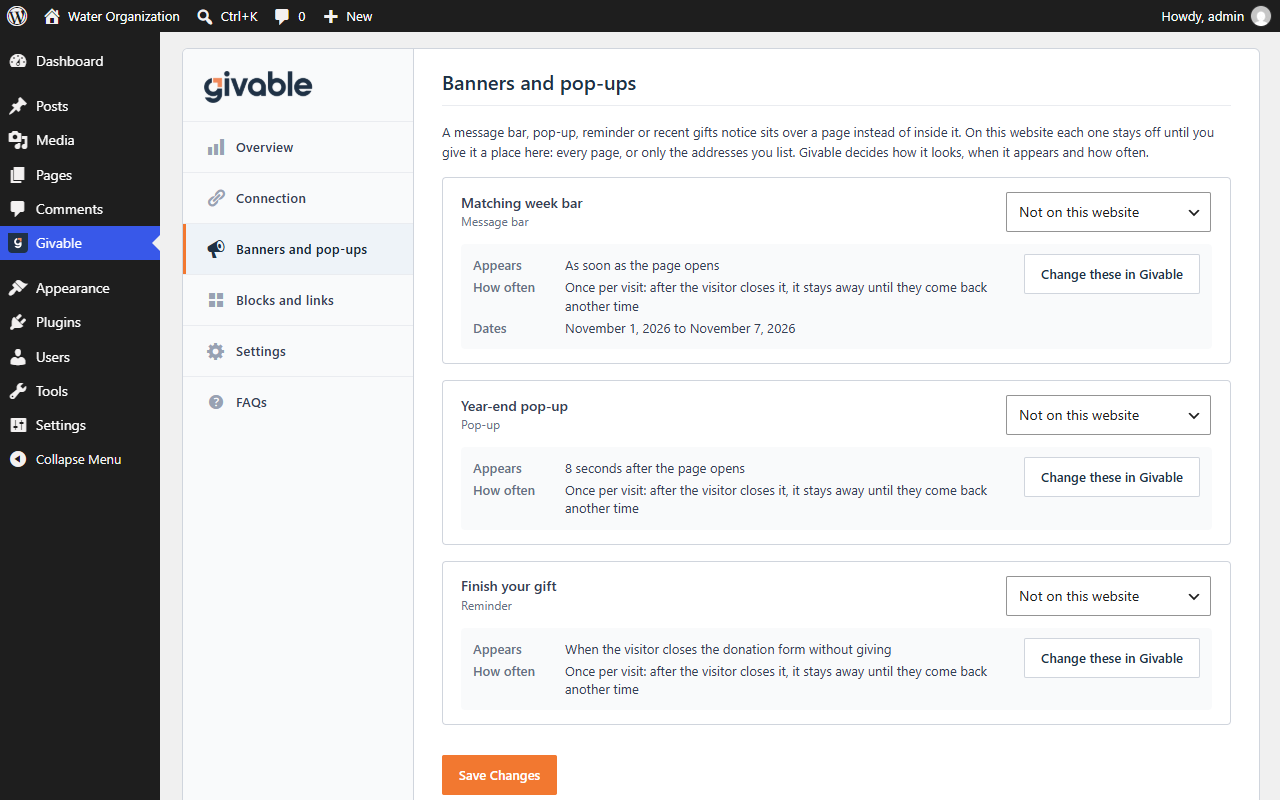
Go to Givable > Banners and pop-ups. Every banner and pop-up switched on in Givable is listed, with when it appears and how often.
Pick where each one shows
For each one, choose On every page, Only on the addresses I list, or leave it Not on this website. Then select Save Changes.
Settings explained
Troubleshooting
Related
Share and embed your form
Links, tracking and blocks for any website.
Peer-to-peer fundraising
Set up the site you place with Givable Peer-to-peer.
Still stuck?
We're here for you, and no question is too small. Tell us what you were trying to do and what happened, and we'll help you get it sorted.