Payments and refunds
See the money behind every gift, refund a payment, and issue a receipt.
A payment is money actually moving: a card charge, a check, a bank transfer, a refund. Financials > Payments is where you handle the money side of a gift.
Before you start: viewing needs permission to view payments. Refunding and editing need permission to edit them, and issuing a receipt needs permission to edit document templates.
The list
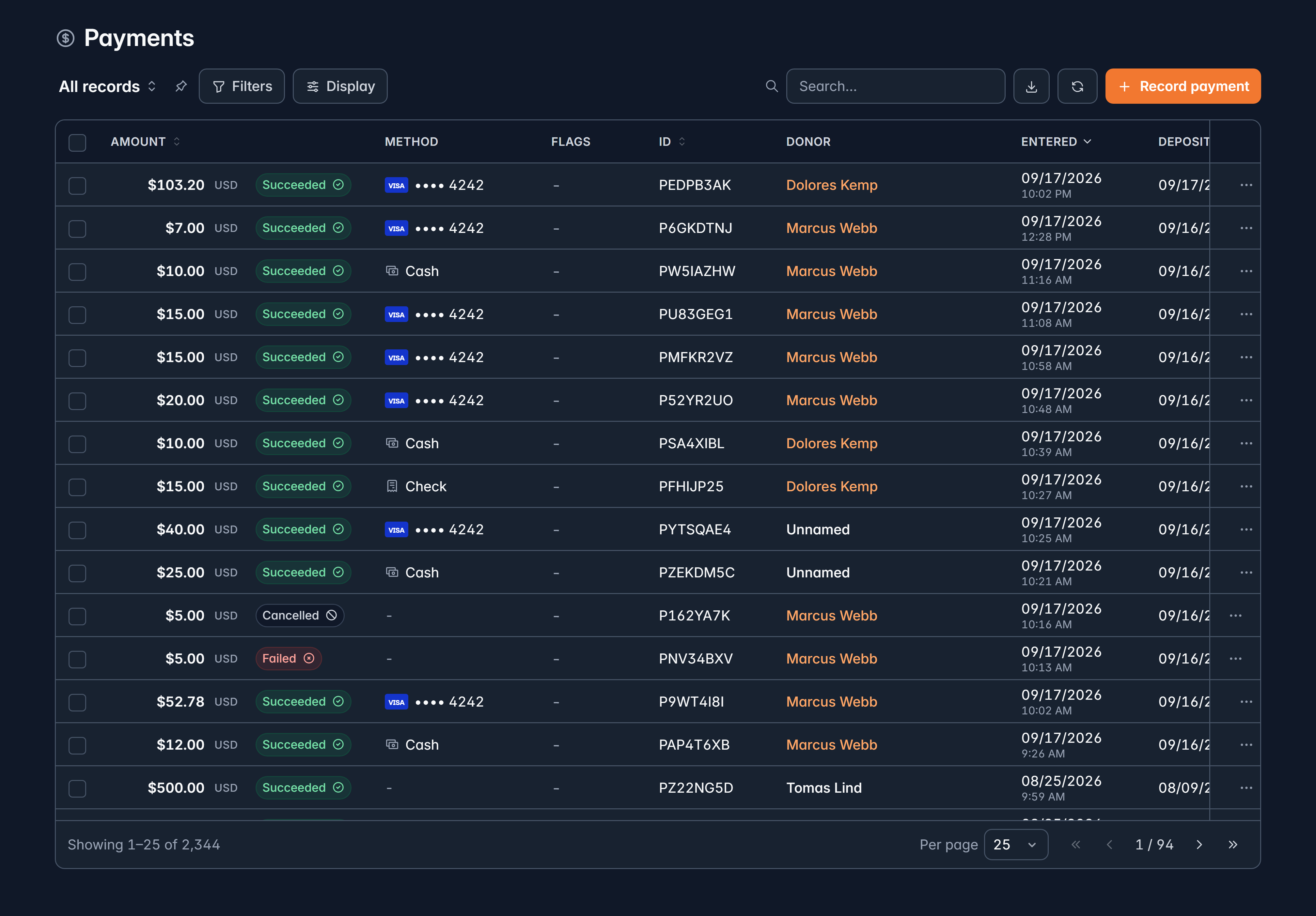
Columns are Amount, Method, Flags, ID, Donor, Entered and Deposited, and you can add Fees, Donation, Type and Payout from Display.
Statuses you'll see: Succeeded, Pending, Processing, Failed, Refunded, Partial, Cancelled, Disputed, Lost, Won and Reversed.
Add the Payout column when you're reconciling your bank account. It tells you which transfer each payment arrived in.
Refund a payment
Find the payment
Refunds only apply to a payment that succeeded. On the list, hover the row and select Refund, or open the payment and use Refund at the top.
Choose the amount
Refund all of it, or part. When the gift is split across funds, you can set how much comes back from each.
Check the summary
Givable shows the Refund total and the Net after, so you can see where the gift lands.
Confirm
The refund is recorded as its own payment against the gift, which is why the original amount stays visible in your history.
To refund several at once, tick them in the list and select Refund. Bulk refunds are full amounts only; for a partial refund, do it one payment at a time.
A payment that has already been fully refunded, or that never settled, can't be refunded again. Givable tells you why rather than failing silently.
Issue a receipt
Open the payment and select Issue receipt. Givable generates it and your download starts on its own. If it takes longer than expected, close the window and check the record again shortly: it keeps going in the background.
Once a receipt exists, Download receipt on that payment fetches it again.
What you can change on a payment
Only the parts your organization owns:
- Check date and Reference #
- Via (sponsor)
- The payment method
- Any custom fields you've added
- The payment date, but only on a gift you recorded yourself, not on one Givable processed
The amount, status, fees and settlement details come from the payment processor and can't be edited. If one of those is wrong, the fix is a refund and a correct gift, not an edit.
Fees and what reached you
Open a payment to see Money (what the donor paid), the processing fees, and what settled into your account. Fees and settlement figures are in your settlement currency, which can differ from what the donor paid if they gave in another currency.
Delete a payment
Deleting moves a payment and its allocations to the Recycle Bin, where it can be restored for a year. The donation record stays. Prefer a refund when money actually moved: a refund is the honest record, deletion is for entries made in error.
Related
Still stuck?
We're here for you, and no question is too small. Tell us what you were trying to do and what happened, and we'll help you get it sorted.