Media Library
One home for your photos, videos and documents, used by every form, page, email and receipt.
Every image on your donation forms, every video on a landing page, every logo on a receipt: they all live in Media Library, once, where anyone on your team can find them.
Before you start: you need permission to view media. Uploading, editing, archiving, deleting and reviewing are separate permissions, so a volunteer can be allowed to upload without being able to delete.
Finding your way around
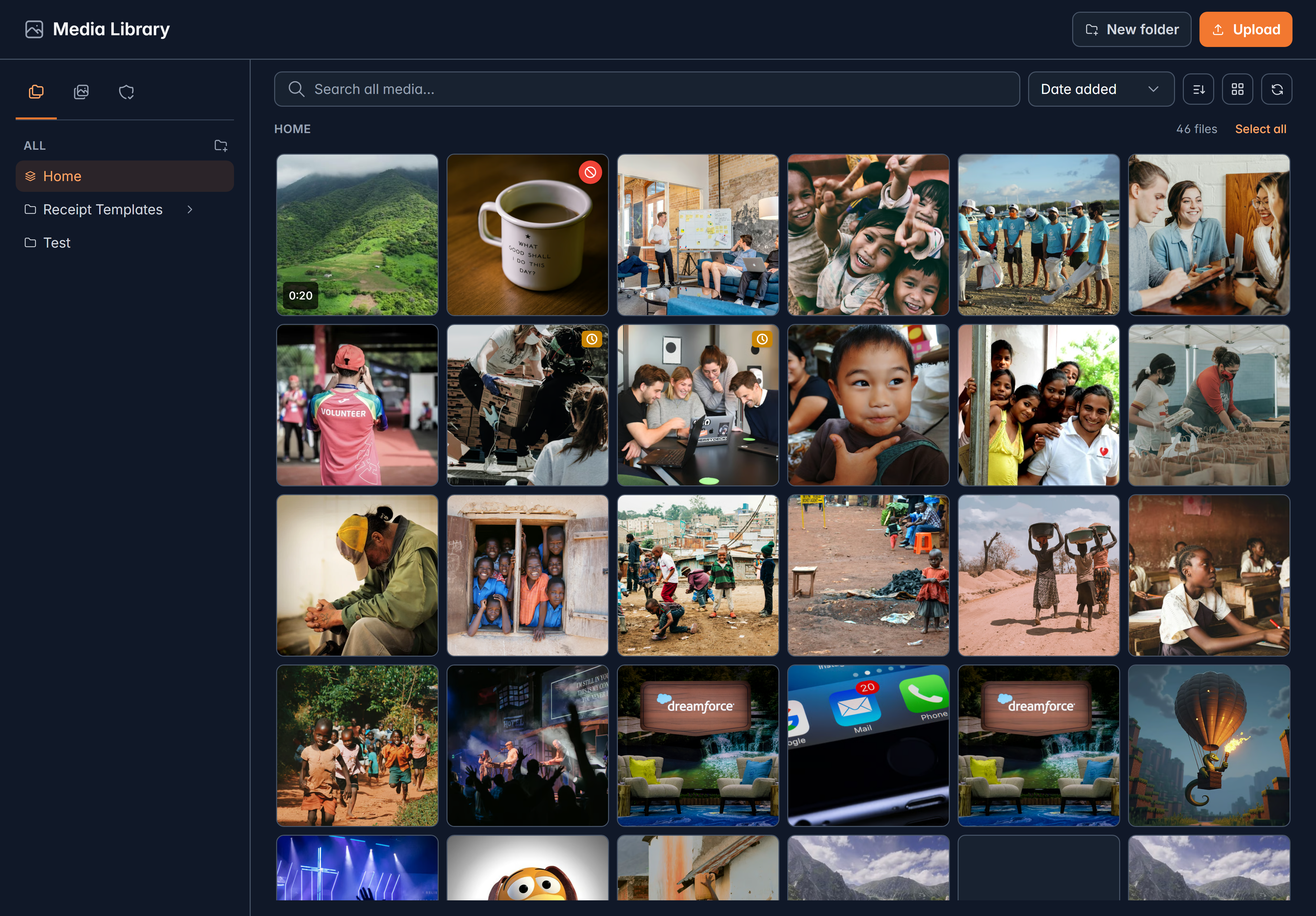
Three columns: what you are browsing on the left, the files in the middle, and everything about the selected file on the right. On a phone, Browse opens the left panel and selecting a file opens its details full screen.
The left panel has three tabs:
Your filing, starting at Home. Nest them however your team thinks: by campaign, by year, by event.
Above the grid: search across all media, sort by date added, last modified, name or file size, and three views, Mosaic, Cards and List.
Upload something
Open the folder you want it in
The upload dialog is titled with wherever you are, so you can see where it is going before you drop anything.
Upload, then drop your files
Drop them on the dialog, or select it to browse. Several at once is fine.
Watch them land
Each file shows its progress, how much has gone, how fast, and how long is left. If one fails, Retry is right there.
What you can upload:
| Kind | Formats | Up to |
|---|---|---|
| Images | PNG, JPEG, WebP | 25 MB |
| Video | MP4, MOV, WebM, MKV | 20 GB |
| Documents | 50 MB |
You can close the upload window. The upload keeps going, and its progress stays in the toolbar. Reloading the page is the one thing that stops it.
A big video that got interrupted picks up where it left off. Come back and the file is listed with a Resume button, waiting for you to choose the same file again. It has to be the identical file, unchanged, which is how Givable knows the halves fit together.
After a video uploads it shows Processing for a while as Givable prepares it to play everywhere. That is normal, and it is done when the tile is.
Everything you can do with a file
Select a file and the right-hand panel opens.
- The facts: format, size, dimensions, source, when it was added and by whom.
- Copy URL, for pasting somewhere Givable does not reach.
- Title and description, which is where alt text belongs. Write it. A screen reader, and a supporter on a slow connection, will both thank you.
- Tags, and your own key and value metadata for anything else you track.
- Edit image, for a crop or a tidy-up without leaving Givable.
- Collections it belongs to, and Move to a folder. Moving a file never changes its URL.
- Used in, which lists the pages, forms and templates that point at it. Check this before you delete anything.
Replacing a file, without breaking anything
Upload a new version of a file and everything that points at it shows the new one. No relinking, no broken images on a page you forgot about.
Versions are listed, the live one marked Serving. You can restore an older one, or copy a link that always points at one specific version.
Archive and delete are different
Archive hides a file and keeps it, so you can bring it back. Delete permanently removes the file, every stored size of it, and its version history. It cannot be undone.
Deleting asks you to type a confirmation, and warns you first when the file is used somewhere (which would leave a broken image there) or has saved versions that go with it. Archived and deleted files pass through the recycle bin, where they can be restored or purged for good.
Select several files and the toolbar acts on all of them at once: move, add to a collection, tag, approve, reject, download, archive or delete.
Where the library shows up
Anywhere Givable asks you for an image, Choose an image opens the same library: the form and experience builder, landing pages, email templates, receipts, text messages with a picture, your organization's logo, marketing list headers and fund images.
Upload once, use it everywhere, and change it in one place.
Related
Branding
Your logo and colors across everything donors see.
Build a form
Where most of these images end up.
Still stuck?
We're here for you, and no question is too small. Tell us what you were trying to do and what happened, and we'll help you get it sorted.